
Finding your ps5 4k 120hz not working after hooking up a PlayStation 5 or PS5 Pro to a modern 4K television or AV receiver almost always traces back to a single bandwidth bottleneck or handshake mismatch in the HDMI 2.1 chain. Unlike older 1080p consoles that negotiate one fixed resolution across every screen, 4K at 120 Hz requires every link—the console’s output settings, the display’s native refresh controller, any intermediate AV receiver or switch, and the HDMI cable connecting them—to advertise and sustain high-speed Fixed Rate Link (FRL) signaling simultaneously.
As detailed in our home theater source and streaming device ecosystem guide, PlayStation hardware also introduces unique quirks that trip up even seasoned owners: the PS5 dashboard intentionally stays locked at 60 Hz until a supported game launches, and its 32 Gbps HDMI 2.1 port shifts from RGB to YUV422 color at 120 Hz. Work through this ordered, lowest-risk diagnostic playbook below to isolate whether your block sits inside a console preset, a TV port menu, an AV receiver bottleneck, or an uncertified cable—without spending money on hardware you do not need.
Safety, Mounting & In-Wall Wiring Notice Before Troubleshooting: Always power down your PS5, television, and AV receiver completely before unplugging or reseating HDMI cables so electrical hot-plugging transients do not damage sensitive HDMI transceiver boards. If your television is wall-mounted and you need to reach rear HDMI ports, follow the manufacturer’s installation instructions, verify the mount matches the display’s VESA pattern and weight rating without the stand (CR-DISP-ACC-02), and confirm brackets are anchored into wood studs or rated masonry rather than unreinforced drywall. Never pull a standard AC power cord inside a wall cavity; any HDMI cable or speaker wire routed inside walls or ceilings must carry an Underwriters Laboratories (UL) CL2 or CL3 in-wall fire rating (CR-ACC-SPK-02) and satisfy local building codes. Consult a licensed electrician or qualified low-voltage AV installer before cutting drywall, installing recessed power boxes behind a TV, or addressing persistent electrical hum. Keep the ventilation clearance specified in your AV receiver manual (CR-AVR-ROOM-01) so sustained 4K/120Hz switching does not overheat the chassis, and lower master volume to a comfortable listening level before verifying audio channels or playing receiver level-calibration tones.
In This Diagnostic Playbook
- Fast Symptom-to-Cause Triage Table
- Why PS5 4K 120Hz Drops: 32 Gbps FRL-4, YUV422 & 60Hz Dashboard Rules
- 8-Step Ordered Recovery Workflow (Lowest Risk First)
- Brand-by-Brand TV & AV Receiver Menu Quick Reference
- Post-Fix Verification Checklist & eARC Audio Check
- Official Technical Standards & Manufacturer Citations
- Frequently Asked Questions
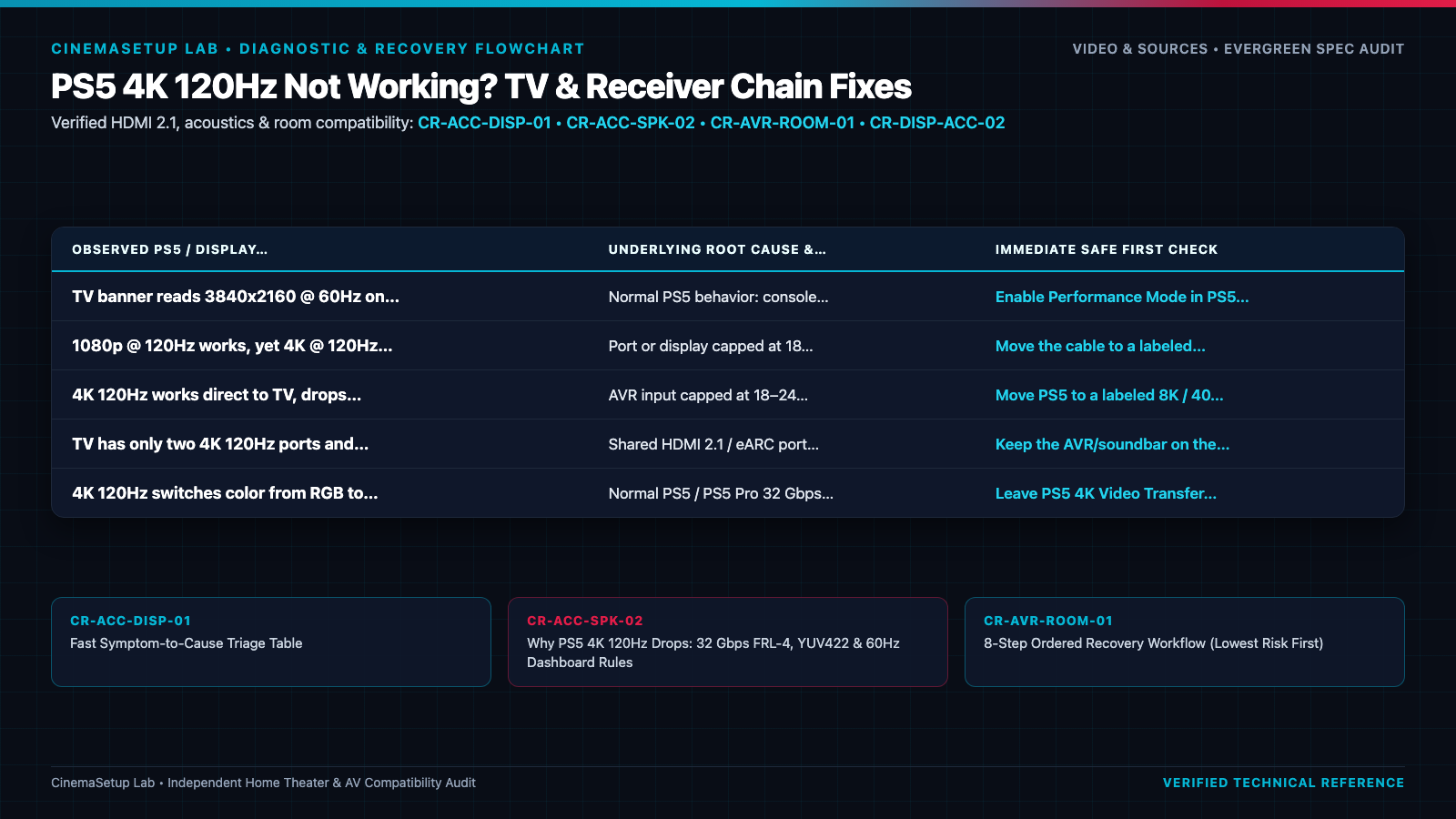
Fast Symptom-to-Cause Triage Table
Every failed 4K/120Hz handshake leaves a specific clue inside the PS5 Video Output menu or your TV’s signal info banner. Match your exact symptom below to identify the governing compatibility rule and jump straight to the safest first check.
| Observed PS5 / Display Symptom | Underlying Root Cause & Rule Trigger | Immediate Safe First Check |
|---|---|---|
TV banner reads 3840x2160 @ 60Hz on PS5 home screen | Normal PS5 behavior: console UI renders at 60 Hz until a 120 Hz game enters gameplay | Enable Performance Mode in PS5 Game Presets, launch a 120 Hz title, and re-check the TV’s Game Bar readout. |
1080p @ 120Hz works, yet 4K @ 120Hz stays unavailable | Port or display capped at 18 Gbps HDMI 2.0, Enhanced Format disabled, or 60 Hz native panel (CR-SRC-DISP-02) | Move the cable to a labeled 40/48 Gbps HDMI 2.1 TV port and turn on Deep Color, Input Signal Plus, or Enhanced (VRR). |
| 4K 120Hz works direct to TV, drops to 60Hz through AVR | AVR input capped at 18–24 Gbps, AVR set to Standard HDMI format, or 2020 HDMI 2.1 chipset bug (CR-SRC-AVR-01) | Move PS5 to a labeled 8K / 40 Gbps AVR port set to 8K Enhanced, or plug PS5 directly into the TV and return audio over eARC. |
| TV has only two 4K 120Hz ports and eARC uses one | Shared HDMI 2.1 / eARC port budget (CR-DISP-AVR-02, common on select Sony and mid-tier LCDs) | Keep the AVR/soundbar on the TV’s labeled eARC port and plug PS5 into the remaining 4K/120Hz port, or route through a 40 Gbps AVR. |
4K 120Hz switches color from RGB to YUV422 | Normal PS5 / PS5 Pro 32 Gbps (FRL-4) bandwidth limit when 10-bit HDR and 120 Hz run together | Leave PS5 4K Video Transfer Rate on Automatic; do not swap certified cables over this expected chroma shift. |
| Black screen, sparkles, or 60Hz fallback on runs over 10 ft (3 m) | High-frequency FRL attenuation in long passive copper or reversed directional fiber cable (CR-ACC-DISP-01) | Verify with a short certified Ultra High Speed 48 Gbps cable under 10 ft (3 m) or flip fiber Source and Display ends. |
120Hz & VRR options greyed out with inline box | Legacy PSVR1 processor unit, 18 Gbps capture card, Hue Sync Box, or non-HDCP 2.2/2.3 splitter (CR-SRC-AVR-02) | Remove all inline capture devices, PSVR1 boxes, and switches so the PS5 connects straight to the display or 40 Gbps AVR. |
Why PS5 4K 120Hz Drops: 32 Gbps FRL-4, YUV422 & 60Hz Dashboard Rules
Before changing settings blindly, it helps to understand how Sony engineered the PlayStation 5 and PS5 Pro HDMI 2.1 output stage. Unlike full 40 Gbps (FRL-5) or 48 Gbps (FRL-6) PC graphics cards and Xbox Series X consoles, both the PS5 and PS5 Pro cap HDMI 2.1 output at 32 Gbps (four FRL lanes running at 8 Gbps each, known as FRL-4). Because an uncompressed 4K 120Hz 10-bit RGB 4:4:4 video stream requires roughly 40.1 Gbps, a 32 Gbps link cannot carry 4:4:4 RGB at 120 Hz. Instead, Sony’s scaler automatically drops chroma subsampling from 4:4:4 RGB to YUV422 (4:2:2) or YUV420 (4:2:0) whenever a game activates 4K/120Hz.
That 32 Gbps design creates two behaviors that owners frequently mistake for hardware faults. First, switching between the 60 Hz PS5 dashboard (running 4:4:4 RGB) and a 120 Hz game (running YUV422) forces the TV to re-lock its HDMI receiver clock, causing a brief 1-to-3 second black screen whenever you boot or exit a 120 Hz title. Second, the PS5 home menu itself never runs at 120 Hz—even when every setting and cable is working properly. Checking your television’s signal banner while sitting on the PlayStation home screen will always display 2160p / 60Hz.
| PS5 Output Mode | Color Format & Depth | Approximate Link Bandwidth | Expected TV Signal Readout |
|---|---|---|---|
| 4K 60Hz (Home UI / Quality Mode) | RGB 4:4:4 (8-bit SDR or 10/12-bit HDR) | 17.8–24 Gbps (TMDS / FRL) | 3840x2160 @ 60Hz RGB (Dashboard always runs here) |
| 4K 120Hz HDR (Gameplay Active) | YUV422 (10/12-bit) or YUV420 | ~32 Gbps (FRL-4 maximum) | 3840x2160 @ 120Hz YUV422 (Normal 32 Gbps behavior) |
| 1440p 120Hz (Monitors / Some TVs) | RGB 4:4:4 or YUV422 | 18–24 Gbps | 2560x1440 @ 120Hz (Requires display 1440p EDID support) |
| 1080p 120Hz (HDMI 2.0 Fallback) | RGB 4:4:4 (8-bit or HDR) | ~11–14 Gbps (TMDS) | 1920x1080 @ 120Hz (Common symptom of 18 Gbps bottleneck) |
8-Step Ordered Recovery Workflow (Lowest Risk First)
Follow these eight diagnostic steps in order. Start with zero-cost software toggles on the console and display before moving cables, bypassing AV receivers, or replacing HDMI runs.
Step 1: Verify PS5 Video Output Settings & Connected HDMI EDID Readout
Open the PlayStation 5 home screen and navigate to Settings > Screen and Video > Video Output. Confirm these exact parameters:
- Enable 120 Hz Output: Set to
Automatic(neverOff). - Resolution: Set to
Automatic(or2160pwhile troubleshooting). - VRR (Variable Refresh Rate): Set to
Automatic; you may optionally enableApply to Unsupported Gamesonce 120 Hz locks cleanly (CR-SRC-DISP-03). - ALLM (Auto Low Latency Mode): Set to
Automaticso compatible displays enter low-lag Game Mode automatically (CR-SRC-DISP-04). - 4K Video Transfer Rate: Leave on
Automatic. Manually forcing-1or-2throttles color depth and bandwidth; only drop to-1temporarily if you suspect a marginal cable while waiting for a certified replacement.
Next, stay inside Video Output and select Information for Connected HDMI Device. Look at the line labeled Frequencies (HDR Supported) or Supported Frequencies. If your TV or AVR is advertising 4K/120Hz correctly over EDID, you will see 2160p: 24, 25, 30, 50, 60, 120 Hz alongside YUV422 / YUV420. If 120 Hz only appears under 1080p and is missing from 2160p, the bottleneck lies downstream in your TV port, TV menu, receiver, or cable—proceed immediately to Step 3.
Step 2: Set PS5 Game Presets to Performance Mode & Enable In-Game 120Hz
Even when 2160p: 120 Hz appears in your HDMI device info table, individual games will stay locked at 30 or 60 frames per second unless both the system preset and the game’s internal graphics menu permit 120 Hz. Navigate to Settings > Saved Data and Game/App Settings > Game Presets and change Performance Mode or Resolution Mode from Game Default or Resolution Mode to Performance Mode.
Afterward, launch a confirmed 120 Hz PlayStation 5 title (such as Fortnite, Call of Duty, Gran Turismo 7, Spider-Man 2, or God of War Ragnarök), open its in-game Video / Display menu, and look for toggles labeled 120 Hz Mode, High Frame Rate, or Unframe / Frame Rate Target. Many titles hide the 120 Hz toggle entirely until Performance Mode is selected, and several require closing and relaunching the game after flipping the toggle before 120 Hz activates.
Step 3: Audit Display Panel Refresh Rate & HDMI 2.1 Port Assignment (CR-SRC-DISP-02, CR-DISP-AVR-02)
Under cross-compatibility rule CR-SRC-DISP-02, 4K/120Hz requires both a native 120 Hz (or 144 Hz) display panel and a 40/48 Gbps HDMI 2.1 input port. Two physical hardware realities block PS5 4K/120Hz right at the display:
- 60 Hz TVs & 4K/60Hz Projectors (HARD Limit): Budget 60 Hz LCD TVs and most 4K pixel-shift home theater projectors accept 120 Hz (or 240 Hz) strictly at
1080p, never at2160p. Even if the box advertises “Motion Rate 120” or “HDMI 2.1 eARC,” a 60 Hz panel controller cannot display 4K/120Hz. - Two-Port HDMI 2.1 Displays & eARC Port Sharing (
CR-DISP-AVR-02): While flagship OLEDs like the LG C6 and Samsung S90H equip all four HDMI jacks with full 48 Gbps bandwidth, many Sony, Hisense, and TCL televisions equip only two ports (typicallyHDMI 3andHDMI 4) with 4K/120Hz hardware—leavingHDMI 1andHDMI 2capped at 18 Gbps HDMI 2.0 (4K/60Hz). Worse, on sets like the Sony Bravia 8, theeARCjack sits onHDMI 3, leaving onlyHDMI 4free for a direct-to-TV PS5 connection whenever an AV receiver or soundbar occupies eARC.
Power down your gear and physically inspect the rear panel labels on your TV. Move the PS5 HDMI cable into a port explicitly labeled 4K 120Hz, 144Hz, or HDMI 2.1, reserving the eARC port for your audio system.
Step 4: Enable the TV’s High-Bandwidth HDMI Format Setting (And Avoid Sony’s Dolby Vision Trap)
Almost every major 4K TV ships with its HDMI inputs throttled to legacy 18 Gbps compatibility out of the box so older cable boxes do not glitch. Even on a true 48 Gbps port, PS5 4K/120Hz will fail until you unlock full bandwidth in the TV menu:
- LG OLED & QNED (LG C6 / webOS): Open Settings > General > External Devices > HDMI Settings > HDMI Deep Color and set the PS5’s HDMI port to
4K. Also open Game Optimizer and confirmVRR & G-SyncandAMD FreeSync Premiumare toggled on. - Samsung OLED & Neo QLED (Samsung S90H / Tizen): Open Settings > Connection > External Device Manager > Input Signal Plus and toggle the specific HDMI port
On. Set Game Mode toAutoorOnso Game Bar unlocks 120 Hz and VRR. - Sony Bravia (Google TV): Open Settings > Channels & Inputs > External Inputs > HDMI Signal Format for your PS5 port and choose Enhanced format (VRR) or Enhanced format. Critical Sony trap: Do not select
Enhanced format (Dolby Vision)for a PS5—PS5 games do not use Dolby Vision, and Sony’s Dolby Vision format profile caps that input at 4K/60Hz while disabling 120 Hz and VRR. - TCL & Hisense (Google TV): Switch the port’s HDMI Standard / Format from
StandardtoEnhanced(orAuto), and enable Game Master / Game Mode plusHigh Frame Rate Modeif listed separately.
Step 5: Bypass Inline Switches, PSVR1 Boxes & 18 Gbps Capture Cards (CR-SRC-AVR-02)
Remove every device sitting between the PS5 and your display or AV receiver temporarily to isolate inline throttling. The most common culprits include:
- Original PSVR1 Processor Unit: The first-generation PlayStation VR breakout box uses HDMI 1.4/2.0 passthrough (maximum 18 Gbps) and permanently strips 4K/120Hz and VRR even in standby. (PlayStation VR2 connects directly via the PS5 front USB-C port and does not sit inline on HDMI.)
- 18 Gbps Capture Cards, Hue Sync Boxes & Matrix Switches: Any capture card, ambient-lighting sync box, or passive HDMI switcher rated at 18 Gbps (4K/60Hz) caps the PS5’s EDID table to 60 Hz at 4K.
- Pre-HDCP 2.2/2.3 Hardware (
CR-SRC-AVR-02): Older HDMI splitters or pre-2016 receivers without HDCP 2.2/2.3 support force 4K protected content down to 1080p or blank out entirely.
Step 6: Resolve AV Receiver & Soundbar Routing Bottlenecks (CR-SRC-AVR-01, CR-SBAR-SRC-01)
If PS5 4K/120Hz works cleanly when plugged straight into the TV yet drops to 60 Hz or blanks out through your AV receiver or soundbar, you have triggered rule CR-SRC-AVR-01 or CR-SBAR-SRC-01. Passing 4K/120Hz through an AVR requires 40 Gbps or 48 Gbps switching on both the selected input and the Monitor Out—plus enabling the receiver’s high-bandwidth menu toggle.
For detailed port layouts across multi-console theaters, see our HDMI eARC and 4K120 port planning guide. Meanwhile, check these exact AVR and soundbar scenarios:
- Verify Which AVR Inputs Support 40 Gbps: Receivers like the Denon AVR-X3900H equip all six rear HDMI inputs with 40 Gbps 8K/4K120 capability, whereas mid-range units like the Denon AVR-X1800H equip only 3 of 6 rear inputs (specifically the
8K-labeled jacks) at 40 Gbps. Plugging a PS5 into an 18 Gbps input likeCBL/SATon a split-speed AVR caps output at 4K/60Hz. - Switch AVR Signal Format to 8K Enhanced: Denon and Marantz AVRs default HDMI inputs to
Enhanced(18 Gbps) rather than 8K Enhanced (40 Gbps). Go to Setup > Video > 4K/8K Signal Format and change the PS5 input to8K Enhanced. On Yamaha AVRs, set HDMI Video Format to8K Mode; on Onkyo/Pioneer models, enable8K Enhancedin HDMI Setup. - 2020-Era AVR Chipset & Soundbar Passthrough Limits: Early 2020-era HDMI 2.1 receivers (such as early-production Yamaha RX-V6A boards flagged under
ISS-AVR-HDMI21-4K120-CHIPSET-2020) and most soundbars—including flagship bars like the Samsung HW-Q990H when used with multi-format TVs—are far simpler to configure when you wire the PS5 directly into a TV HDMI 2.1 port and return uncompressed multichannel PCM or Dolby Atmos audio to the AVR/soundbar over HDMI eARC (CR-DISP-AVR-01).
Step 7: Audit Ultra High Speed HDMI Certification, Length & Active Fiber Direction (CR-ACC-DISP-01)
Even with 32 Gbps FRL-4 signaling, marginal cables cause intermittent blackouts, sparkling pixels, or silent fallback to 4K/60Hz. Under CR-ACC-DISP-01, audit your cabling against three verified physical boundaries (and check our guide to certified Ultra High Speed HDMI cables for 4K 120Hz if you need a compliant run):
- Use the OEM Sony Cable or Official UHS Certification: The black HDMI cable bundled inside the PS5 and PS5 Pro box is a 5 ft (1.5 m) Ultra High Speed cable rated for full 48 Gbps FRL. If you swapped it for a longer aftermarket cord, verify the packaging carries the official Ultra High Speed HDMI Certified hologram and scannable QR label—many marketplace cables stamped “8K / 48 Gbps” lack certification (
ISS-ACC-FAKE-HDMI-CERT) and fail above 18 Gbps. - Respect the 10 ft (3 m) Passive Copper Limit: Passive copper cables longer than roughly 10 ft (3 m) frequently suffer high-frequency FRL attenuation at 32–48 Gbps. If your console sits across the room from a wall-mounted display or projector, step up to an official UHS-certified Active Optical Fiber (AOC) HDMI 2.1 cable.
- Check Fiber Direction & In-Wall CL2/CL3 Ratings: Active optical HDMI cables are strictly one-way (
ISS-ACC-FIBER-DIRECTION): the end stamped Source must plug into the PS5 (or AVR output), and the end stamped Display must plug into the TV. Installing a fiber cable backward yields a permanent blank screen. For any run routed behind drywall, verify aCL2orCL3UL jacket rating (CR-ACC-SPK-02).
Step 8: Perform a 60-Second Cold AC Handshake Reset & Firmware Check
Displays and AV receivers cache HDMI EDID and HDCP tables in volatile memory even in “standby” mode. After changing TV Enhanced Format or AVR 8K Enhanced settings, an old 60 Hz EDID entry often remains stuck until all capacitors drain:
- Shut down the PS5 completely (select Power > Turn Off PS5, not Rest Mode).
- Turn off the TV and AV receiver, then unplug all three power cords from the AC wall outlet or surge protector for at least 60 seconds.
- Verify every HDMI connector is seated squarely without strain pulling down on the port.
- Plug AC cords back in and power devices on in downstream-to-upstream order: AV receiver first, TV second (wait until the HDMI input banner settles), and PS5 last.
- Check for pending firmware updates on your TV, AVR, and PS5 system software, as display makers routinely patch VRR and 120 Hz EDID timing bugs via firmware.
Brand-by-Brand TV & AV Receiver Menu Quick Reference
Menu labels differ across every TV and receiver manufacturer. Use this quick reference to locate the exact high-bandwidth 4K/120Hz toggle and port assignment on common current US models.
| Brand / Representative Model | Recommended PS5 HDMI Port | Exact Bandwidth / 120Hz Menu Path | Critical Setup Gotcha |
|---|---|---|---|
| LG OLED (LG C6 / webOS) | HDMI 1, HDMI 3, or HDMI 4 (save HDMI 2 for eARC) | Settings > General > External Devices > HDMI Settings > HDMI Deep Color (4K) + Game Optimizer | All 4 ports support 48 Gbps; turn on VRR & G-Sync inside Game Optimizer. |
| Samsung OLED / Neo QLED (Samsung S90H / Tizen) | Any labeled 4K 120/144Hz port (save HDMI 3 for eARC) | Settings > Connection > External Device Manager > Input Signal Plus (On) + Game Mode | Input Signal Plus is per-port; verify it is toggled on for the exact jack in use. |
| Sony Bravia (Bravia 8 / Google TV) | HDMI 4 (keep HDMI 3 free for eARC audio return) | Settings > Channels & Inputs > External Inputs > HDMI Signal Format > Enhanced format (VRR) | Only 2 ports support 4K/120Hz (CR-DISP-AVR-02); avoid Enhanced (Dolby Vision) on PS5. |
| TCL & Hisense (Google TV) | Labeled HDMI 2.1 / 4K 120Hz ports (typically HDMI 3 or 4) | Inputs / Channel Settings > HDMI Standard > Enhanced Format + Game Master / High Frame Rate | Often limited to 2 HDMI 2.1 ports total, with 1 shared with eARC. |
| Denon / Marantz (AVR-X3900H, AVR-X1800H) | Any 8K / 40 Gbps rear input (X3900H: all 6; X1800H: 3 of 6) | Setup > Video > 4K/8K Signal Format > 8K Enhanced | Default Enhanced mode caps at 18 Gbps 4K/60Hz; 8K Enhanced is mandatory. |
| Yamaha / Onkyo AVRs | Labeled 8K 40 Gbps HDMI inputs only | Yamaha: HDMI Video Format > 8K Mode; Onkyo: HDMI Setup > 8K Enhanced | Early 2020 RX-V6A boards have 4K120 chipset quirks (ISS-AVR-HDMI21-4K120-CHIPSET-2020); wire PS5 to TV + eARC. |
Post-Fix Verification Checklist & eARC Audio Check
Once you finish the recovery sequence, confirm the complete video and audio chain is locked cleanly before settling in to play:
- Confirm Active Gameplay Frame Rate: Launch a 120 Hz game with Performance Mode active and open your TV’s Game Bar or Signal Information overlay (for example, pressing the green button repeatedly on LG remotes or holding Play/Pause on Samsung remotes). Confirm the live readout shows
119–120 Hz,3840x2160,YUV422(when HDR is active), andVRR ON. - Confirm Audio Format Over eARC (
CR-DISP-AVR-01): If your PS5 connects directly to the TV and returns audio to an AVR or soundbar, set PS5 Settings > Sound > Audio Output > Audio Format (Priority) toLinear PCMfor zero-lag uncompressed 5.1/7.1 surround (orDolby Atmosif you use a physical 5.1.2+ height layout and want Tempest 3D Atmos rendering), and confirm the TV Digital Audio Output is set toPass Throughover eARC. - Check Lip-Sync & Comfortable Volume (
CR-SYS-04,G-27): If audio trails gameplay video over eARC, enable your TV’sBypass/ low-latency audio sync mode or adjust lip-sync delay on the AVR. Keep master volume at a comfortable listening level whenever switching output formats or playing receiver level-calibration tones.
Official Technical Standards & Manufacturer Citations
- PlayStation Support (Sony Interactive Entertainment US): Video Output Information, 120 Hz Output, and Variable Refresh Rate (VRR) Requirements for PS5 & PS5 Pro — documents
Automatic120 Hz behavior,4K Video Transfer Rate, and HDMI 2.1 cable requirements (playstation.com/en-us/support). - HDMI Licensing Administrator (HDMI Forum): HDMI 2.1a Specification & Ultra High Speed HDMI Cable Certification Program — defines Fixed Rate Link (FRL) lane rates up to 48 Gbps, eARC lossless LPCM/Atmos transport, VRR/ALLM signaling, and official QR hologram verification (hdmi.org).
- Denon / LG / Sony US Technical Support Manuals: 4K/8K Signal Format (8K Enhanced), LG HDMI Deep Color, and Sony Bravia Enhanced Format (VRR) — manufacturer US setup references confirming 40/48 Gbps port assignments and eARC port sharing (support.denon.com).
- National Electrical Code (NEC Article 725 / UL 444 & UL 13): CL2 and CL3 In-Wall Communications Cable Fire-Resistance Ratings — US safety standard governing low-voltage HDMI and speaker runs inside concealed wall cavities (nfpa.org).
How We Audited This Guide
- Displays and sources were audited across OLED vs. Mini-LED HDR formats (Dolby Vision, HDR10+), 4K/120Hz VRR console support, verified ANSI/ISO projector lumens, throw distance ratios, and lossless optical disc vs. streaming audio codecs.
- Every AV receiver, speaker, subwoofer, soundbar, OLED/Mini-LED TV, projector, source player, and accessory spec was cross-checked against official manufacturer manuals, CEA/CTA standards, and live Amazon US listings.
- Recommendations were evaluated against our weighted vertical scoring rubrics and documented CR-* compatibility rules; we never invent nits, contrast ratios, bench wattage, or room decibels.
Continue Your Audit
- Best TVs for Home Theater (2026): 9 OLED & Mini-LED Picks Audited
- Best TVs for PS5 & Xbox Series X 2026: 4K120 Ports Audited
Frequently Asked Questions
Why does my PS5 show 60Hz on the home screen even with a 120Hz TV?
The PlayStation 5 and PS5 Pro system dashboard always renders at 60 Hz. The console switches to 4K/120Hz only inside a game that supports 120 Hz output with Performance Mode active. Check your TV’s Game Bar overlay during gameplay rather than on the home menu.
Why does PS5 drop from RGB to YUV422 at 4K 120Hz?
Sony caps the PS5 and PS5 Pro HDMI 2.1 output at 32 Gbps (FRL-4). Because uncompressed 4K 120Hz 10-bit RGB requires roughly 40 Gbps, the console automatically shifts chroma subsampling to YUV422 or YUV420 at 120 Hz. That behavior is completely normal hardware design.
Should I plug my PS5 into my AV receiver or straight into my TV?
Plug the PS5 directly into a 40 Gbps AVR input only if the receiver explicitly supports 40 Gbps 4K/120Hz and VRR passthrough with 8K Enhanced enabled. Otherwise, connecting the PS5 directly to a TV HDMI 2.1 port and returning audio via eARC prevents video bottlenecks.
Do I need to buy a new HDMI cable for PS5 4K 120Hz?
Not if you use the Ultra High Speed HDMI cable included inside the PS5 or PS5 Pro box. You only need a new certified Ultra High Speed 48 Gbps copper cable (under 10 ft / 3 m) or a directional active optical fiber cable for longer wall runs.
Why does my Sony TV lose 4K 120Hz when set to Enhanced format (Dolby Vision)?
On Sony Bravia televisions, the Enhanced format (Dolby Vision) profile optimizes the HDMI input for 4K/60Hz Dolby Vision movie players and locks out 120 Hz and VRR. Switch the PS5’s input to Enhanced format (VRR) under External Inputs to unlock 4K/120Hz.
Can a 4K projector run PS5 at 4K 120Hz?
Most mainstream 4K pixel-shift home theater projectors use 60 Hz display controllers at 4K and cap 120 Hz or 240 Hz input strictly at 1080p. Verify your projector’s native 2160p refresh spec before troubleshooting, as a 60 Hz 4K controller is a hard hardware limit.
Still stuck with an unusual EDID conflict or multi-zone matrix quirk? Reach out via our CinemaSetup Lab contact page or review our editorial and hardware audit standards for model-specific compatibility guidance.


