
Dialing in the best tv picture settings for movies does not require a colorimeter, paid software, or entering hidden service menus. Out of the box, nearly every modern television ships with power-saving light sensors active, bluish color temperatures pushed past 9,000 K, and aggressive motion smoothing that turns cinema into daytime television. By switching to a reference preset, shutting off competing post-processing filters, and separating your Standard Dynamic Range (SDR) and High Dynamic Range (HDR) memories, you align your screen with the exact mastering standards Hollywood colorists use.
Whether you own a self-emissive WOLED panel like the LG C6, a QD-OLED model like the Samsung S90H, or a high-luminance Mini-LED set covered in our best TVs for home theater pillar hub, the underlying calibration math remains consistent across brands. Accurate cinema playback relies on a clean HDMI signal handshake from your streaming box or 4K Blu-ray player, a D65 warm white point, unclipped shadow and highlight curves, and pure 24-frames-per-second (24p) motion cadence.
Safety, Wall-Mounting & HDMI Signal Notice Before Adjusting Hardware: Many picture quality problems trace back to HDMI port limits or loose cables behind a wall-mounted screen rather than menu sliders. Always power down your television, AV receiver (AVR), and media players before unplugging or reseating HDMI leads so hot-plug voltage spikes cannot damage handshake boards. If you tilt or pull out a wall-mounted TV to check rear HDMI port labels, follow the manufacturer’s installation instructions strictly, confirm the VESA bolt pattern and weight capacity in pounds (lb) and kilograms (kg) per rule CR-DISP-ACC-02, and verify the bracket is anchored into wood or metal studs rather than bare drywall. Any power or low-voltage HDMI cabling routed inside walls must comply with local building codes and National Electrical Code (NEC) Article 725 (CL2/CL3 jackets for low-voltage wiring); consult a licensed electrician or qualified low-voltage AV installer before cutting drywall or adding recessed AC outlets behind a display.
In This Movie Picture Calibration Playbook
- Fast Picture Symptom-to-Cause Triage Table
- Phase 1: Source Handshake, HDMI Format & HDR Compatibility
- Phase 2: 7-Step Universal Movie Calibration Sequence
- SDR vs. HDR10 & Dolby Vision: Why Luminance Rules Flip
- Brand-by-Brand Movie Settings Map (LG, Samsung, Sony, TCL & Hisense)
- Room Lighting Fit, Viewing Distance & OLED Retention Safeguards
- 6-Point Movie Picture Verification Checklist
- Official Standards & Manufacturer Citations
- Frequently Asked Questions
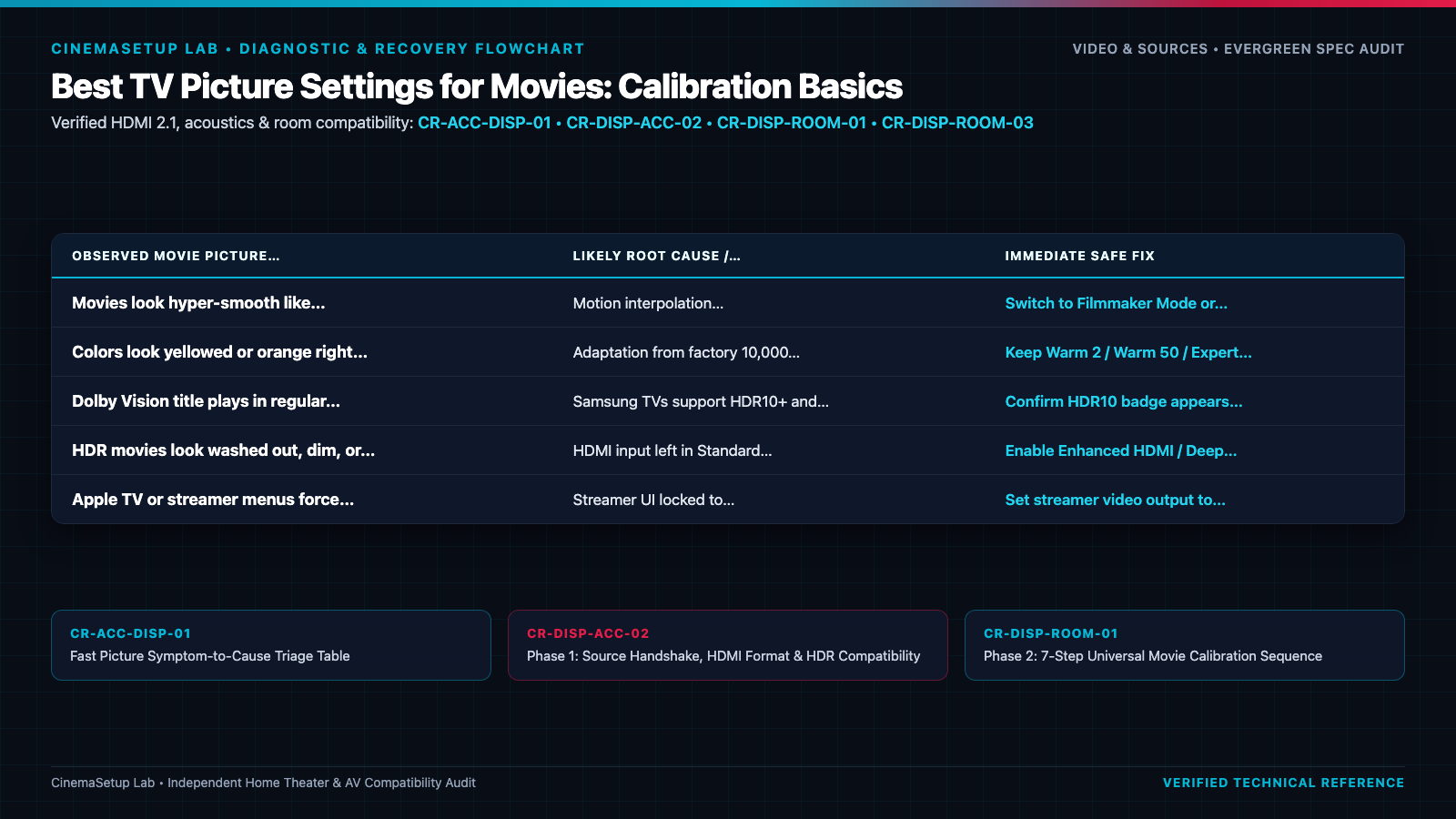
Fast Picture Symptom-to-Cause Triage Table
Before diving through nested menus, match what looks wrong on your screen to the root cause and lowest-risk setting adjustment below. Remember that modern TVs store separate picture memories per input and per dynamic range (SDR, HDR10, HDR10+, and Dolby Vision), so changing a slider while watching a standard cable show will not update your Dolby Vision movie preset.
| Observed Movie Picture Symptom | Likely Root Cause / Compatibility Rule | Immediate Safe Fix |
|---|---|---|
| Movies look hyper-smooth like behind-the-scenes video | Motion interpolation (TruMotion, Motionflow, Picture Clarity) is active in Standard or Vivid mode | Switch to Filmmaker Mode or Cinema and set motion smoothing to Off while enabling 24p cadence detection. |
| Colors look yellowed or orange right after switching to Warm | Adaptation from factory 10,000 K blue-tinted white point makes D65 (6,500 K) look warm at first | Keep Warm 2 / Warm 50 / Expert 1 active for 20 minutes of evening viewing so human vision re-anchors white. |
| Dolby Vision title plays in regular HDR10 on a Samsung TV | Samsung TVs support HDR10+ and HDR10, not Dolby Vision (CR-SRC-DISP-01) | Confirm HDR10 badge appears and verify your player outputs HDR10 cleanly; this fallback is normal, not a fault. |
| HDR movies look washed out, dim, or clipped in highlights | HDMI input left in Standard (8-bit) mode, Eco sensor enabled, or Dynamic Tone Mapping over-brightening midtones | Enable Enhanced HDMI / Deep Color, turn Eco/Power Saving Off, and set Tone Mapping to static/HGiG or Cinema. |
| Apple TV or streamer menus force fake HDR on SDR films | Streamer UI locked to always-on Dolby Vision/HDR instead of native dynamic range matching | Set streamer video output to 4K SDR and turn Match Dynamic Range and Match Frame Rate to On. |
| Bright white halos glow around subtitles on dark scenes | Mini-LED local dimming set to Low/Off, or viewing a VA LCD panel far off-axis (CR-DISP-ROOM-04) | Set Local Dimming to Medium or High, avoid extreme side angles on VA screens, and reduce subtitle opacity in app settings. |
| 4K HDR playback drops to 1080p or flashes black screens | Unverified long passive HDMI cable or unconfigured 48 Gbps input (CR-ACC-DISP-01, CR-SRC-DISP-02) | Power down devices, swap to an Ultra High Speed HDMI Certified cable ≤ 10 ft (3 m), or use directional fiber AOC for long runs. |
Phase 1: Source Handshake, HDMI Format & HDR Compatibility
Every calibration fails if the video signal arriving at the television is already compressed, quantized to 8-bit SDR, or stripped of its native 24p frame cadence. Before touching Color, Gamma, or Sharpness sliders on your TV, verify the source-to-panel chain from the wall socket to the HDMI port.
1. Enable Full-Bandwidth HDMI Signaling on the Exact Movie Input
Most televisions ship with HDMI ports throttled to legacy compatibility mode so older set-top boxes do not fail handshakes. When left throttled, 4K Blu-ray players and modern streamers cannot pass 10-bit 4:2:2 or 4:4:4 HDR signals at full bit depth. Open your TV’s external input settings and enable full bandwidth on the specific port fed by your AVR or movie streamer:
- LG webOS TVs: Navigate to Settings → General → External Devices → HDMI Settings → HDMI Deep Color and select 4K on every port used for movies or consoles.
- Samsung Tizen TVs: Open Settings → Connection → External Device Manager → Input Signal Plus and toggle it On for your movie HDMI port.
- Sony Google TVs: Go to Settings → Channels & Inputs → External Inputs → HDMI Signal Format and select Enhanced format (or Enhanced format (Dolby Vision) if connecting a non-4K120 Dolby Vision disc player or Apple TV 4K).
- TCL & Hisense TVs: Locate Channels & Inputs → HDMI Format / HDMI 2.1 Mode and switch from Standard to Enhanced (or Auto).
Under compatibility rules CR-SRC-DISP-02 and CR-ACC-DISP-01, high-bandwidth 4K HDR and 4K120 streams require an Ultra High Speed HDMI Certified cable bearing the official HDMI Forum QR hologram label. Keep passive copper runs to roughly 10 ft (3 m) or shorter; if your wall-mounted screen connects to a distant equipment rack across 15 to 30 ft (4.6 to 9.1 m), use a directional Ultra High Speed fiber active optical cable (AOC) with its Source and Display ends oriented correctly.
2. Understand Dynamic HDR Format Fallbacks (CR-SRC-DISP-01)
Buyers frequently worry that their television picture settings are misconfigured when a Dolby Vision movie badge fails to appear. Under compatibility rule CR-SRC-DISP-01, dynamic HDR metadata follows strict brand licensing boundaries rather than universal cross-support:
- LG and Sony OLED / Mini-LED TVs: Support Dolby Vision, HDR10, and HLG, while omitting HDR10+ on US retail models. Streaming an HDR10+ title from Prime Video or playing an HDR10+ 4K Blu-ray triggers an automatic, compliant fallback to the static HDR10 base layer.
- Samsung OLED and Neo QLED TVs: Support HDR10+, HDR10, and HLG, and omit Dolby Vision. Playing a Dolby Vision stream or disc on a Samsung set automatically delivers the base HDR10 layer. Never treat this fallback as a broken cable or faulty TV.
- TCL and Hisense Mini-LED TVs: Most current US mid-tier and flagship Mini-LED models support both Dolby Vision and HDR10+ alongside HDR10, though you should still verify the exact model’s specification sheet.
3. Configure Your Streaming Box and 4K Blu-ray Player Correctly
Even with a calibrated TV, forcing an external player to convert every SDR menu and classic 1080p film into fake HDR ruins contrast and oversaturates reds. On an Apple TV 4K, set the default video format to 4K SDR (60 Hz) with 4:2:0 or YCbCr output, then turn both Match Dynamic Range and Match Frame Rate to On. On Google TV, Roku, and Fire TV streamers, enable frame-rate and dynamic-range matching wherever supported by apps. On dedicated 4K Ultra HD Blu-ray players, enable 24p Output, leave upscaling to Auto, and keep video picture adjustments inside the player at neutral zero so the TV handles tone mapping cleanly.
Also confirm Auto Low Latency Mode (ALLM, rule CR-SRC-DISP-04) is disabled on dedicated movie inputs—or keep consoles on a separate HDMI port—so your TV does not automatically jump into Game Mode when a Blu-ray menu or AVR interface triggers an ALLM flag, which bypasses 24p cadence processing and local dimming precision on many models.
Phase 2: 7-Step Universal Movie Calibration Sequence
Follow these seven steps in order while playing a familiar, high-bitrate live-action film in evening room lighting. Because TVs save independent picture settings for each video format, repeat Steps 3 through 7 once while playing an SDR movie, once during an HDR10 movie, and once during a Dolby Vision movie.
Step 1: Disable Energy Saving, Eco Sensors & AI Picture Overrides
Manufacturer power-saving menus live outside the standard Picture Mode menu on most smart TVs, silently overriding your backlight and brightness sliders. Before adjusting image controls, open your TV’s General, Support, or Eco Solution settings and turn off:
- Power Saving / Energy Saving Step (set to Off; keep separate screen-saver dimmers enabled for OLED safety)
- Ambient Light Detection / Brightness Optimization (unless intentionally using Dolby Vision IQ for sunlit afternoon viewing)
- AI Picture Pro / AI Brightness / Genre Selection (prevents the TV from swapping presets mid-movie)
Step 2: Select Filmmaker Mode, Cinema, or Professional
Switch your Picture Mode out of Standard, Eco, Sports, or Vivid immediately. Choose Filmmaker Mode (jointly developed by the UHD Alliance with directors and studios), Movie, Cinema, or Sony’s Professional preset. These modes disable artificial edge enhancement, clamp oversaturated color gamuts back to the mastering container, and align grayscale tracking close to industry targets before you touch a single slider.
Dolby Vision note: Dolby Vision content replaces standard presets with dedicated Dolby Vision options—typically Dolby Vision Cinema (or Filmmaker / Dark) for dim rooms, and Dolby Vision Cinema Home (or Bright) for sunlit living rooms. Avoid Dolby Vision Vivid and Dolby Vision Standard, which crush midtones and push cool white points.
Step 3: Lock Color Temperature to D65 Warm (6,500 K)
Cinema mastering monitors are calibrated to the CIE D65 white point (approximately 6,500 K), matching natural midday daylight rather than the icy blue 9,000 K to 11,000 K tint used to make showroom TVs stand out under fluorescent store lights. Select Warm 50 (LG), Warm2 (Samsung), Expert 1 (Sony), or Warm / -5 (TCL and Hisense).
If whites look slightly creamy or yellow right after switching, give your eyes 15 to 20 minutes to adapt in a darkened room without toggling back to Cool or Standard. Once adapted, skin tones, snow, desert sand, and incandescent indoor lighting immediately look lifelike rather than chalky or sunburned.
Step 4: Set Contrast, Black Level & Gamma Without Shadow Crush
In TV terminology, Contrast (sometimes labeled Picture) controls peak white output, whereas Brightness (sometimes labeled Black Level) controls the black floor—not overall screen luminance. Leave both near their reference preset defaults unless a known reference pattern (such as Spears & Munsil or a built-in receiver pattern check) shows clipping:
- Black Level / Brightness: Keep at 50 (default center on LG/Sony/TCL/Hisense, or 0 on Samsung’s -5 to +5 scale). Raising this slider even two clicks on an OLED lifts true pixel-off black into glowing dark gray, destroying infinite contrast.
- Contrast: In SDR, keep between 80 and 90 (or 45 on Samsung’s 0–50 scale) so bright clouds retain texture without turning into flat white blobs. In HDR10 and Dolby Vision, leave Contrast at 100 (50 on Samsung) so the PQ curve retains full highlight headroom.
- SDR Gamma: Set to BT.1886 or 2.4 for dark-room movie nights, or 2.2 if you watch mostly during daylight with curtains open.
Step 5: Zero Out Sharpness & Strip Noise Reduction Filters
Sharpness does not add real 4K detail—it traces artificial white and black halos around object edges, exaggerating film grain and digital compression artifacts. Set Sharpness to 0 on LG, Samsung, TCL, and Hisense TVs. On Sony Bravia models, 50 is the neutral zero-processing midpoint (values below 50 soften the image; values above 50 add ringing).
Turn off Noise Reduction, MPEG Noise Reduction, Super Resolution, and Edge Enhancer for 4K Blu-ray discs and high-bitrate 4K streams. If you frequently watch heavily compressed 720p cable sports or older streaming encodes with visible sky banding, enabling Smooth Gradation (or De-Contour) on Low smooths 8-bit gradients without blurring actor faces—otherwise leave it Off.
Step 6: Set Color & Tint to Neutral With Auto Color Gamut
Leave Color (Saturation) at its reference default (typically 50 on LG/Sony/TCL/Hisense, or 25 on Samsung’s 0–50 scale) and Tint (G/R) at 0. Crucially, verify Color Gamut / Color Space is set to Auto Detect (or Auto) rather than Native or Wide. Setting SDR Rec.709 movies to Native stretches standard colors across the TV’s wider DCI-P3/BT.2020 panel primaries, turning grass neon green and actor faces sunburned.
Step 7: Lock Pure 24p Cadence & Eliminate Soap Opera Effect
Nearly all narrative cinema is shot at 24 frames per second (strictly 23.976 fps). On a 120 Hz panel—standard across mid-tier and flagship OLED and Mini-LED TVs—24 divides cleanly by 5 (5:5 pulldown), displaying each film frame identically without synthetic frames or 3:2 telecine judder.
- Enable Pure 24p Extraction: Turn Real Cinema (LG), CineMotion (Sony: High), or Film Mode (Samsung: Auto) On so 24p movies inside 60i/60p cable or streaming containers extract back to native 5:5 cadence.
- Turn Motion Interpolation Off: Disable TruMotion (LG), Picture Clarity / Blur & Judder Reduction (Samsung), Motionflow (Sony), and Action Smoothing (TCL/Hisense) to prevent interpolated frames from creating the Soap Opera Effect and halo glitches around fast movement.
- OLED Instant-Response Stutter Caveat: Because OLED pixels switch states almost instantaneously compared to slower LCDs, wide horizontal camera pans at 24p can show natural frame-hold stutter. If that bothers you, use the lowest user setting—such as LG Cinematic Movement or custom De-Judder at 1 to 2 out of 10—rather than full smoothing, and keep Black Frame Insertion (BFI / OLED Motion) Off for HDR movies since BFI cuts peak luminance steeply and introduces visible flicker.
SDR vs. HDR10 & Dolby Vision: Why Luminance Rules Flip
The single biggest mistake viewers make when applying movie picture settings is treating the OLED Pixel Brightness / Backlight slider the same way in SDR and HDR. Standard Dynamic Range and High Dynamic Range obey completely different mathematical transfer functions:
| Picture Parameter | SDR Movies (ITU-R BT.709 / BT.1886) | HDR10 / HDR10+ / Dolby Vision (SMPTE ST 2084 PQ) |
|---|---|---|
| Transfer Function | Relative gamma curve (mastered near 100 nits reference in a dark suite) | Absolute Perceptual Quantizer (PQ) EOTF assigning exact nit levels from 0 to 10,000 nits |
| OLED Pixel Brightness / Backlight | Adjust to room light: lower in dark theater rooms, higher in bright daytime rooms | Always 100 (Max) / 50 (Samsung Max) so specular highlights preserve intended dynamic range |
| Contrast Slider | 80–90 (45 on Samsung) to prevent white highlight clipping | 100 (Max) (50 on Samsung) to follow the PQ curve cleanly |
| Gamma / EOTF | 2.4 / BT.1886 (dark room) or 2.2 (lit living room) | Fixed at 0 / ST 2084 (adjust Shadow Detail only 1 step if near-black crushes) |
| Color Space / Gamut | Auto (locks to Rec.709 container) | Auto (maps DCI-P3 inside Rec.2020 container accurately) |
| Dynamic Tone Mapping | Not applicable (always keep Dynamic Contrast Off) | Keep Off, Static, or HGiG for creator intent; use sparingly only if 4,000-nit discs look overly dark |
In HDR, lowering your OLED Pixel Brightness or Mini-LED Backlight slider from 100 down to 50 does not just dim the room—it compresses the absolute PQ luminance curve, turning sunlit reflections and fire explosions dull. Conversely, cranking an SDR movie’s backlight to 100 in a pitch-black bedroom washes out shadow nuance and increases OLED Automatic Brightness Limiter (ABL) pumping across bright scenes.
Brand-by-Brand Movie Settings Map (LG, Samsung, Sony, TCL & Hisense)
Menu labels shift slightly between TV operating systems. Use the verified US retail brand map below as your starting baseline for current OLED and Mini-LED models, adjusting only SDR Backlight/OLED Brightness to match your room’s ambient light.
| Brand & OS Platform | Recommended Preset | Brightness & Dimming Baseline | Color, Sharpness & Motion |
|---|---|---|---|
| LG OLED (webOS, e.g., LG C6 / G6) | Filmmaker Mode (SDR/HDR10) • Cinema (Dolby Vision) | SDR OLED Pixel Brightness: 30–45 dark / 70–85 bright; HDR/DV: 100; Peak Brightness: Off (SDR) / High (HDR); Dynamic Tone Mapping: Off | Color Temp: Warm 50; Color Depth: 50; Color Gamut: Auto Detect; Sharpness: 0; Real Cinema: On; TruMotion: Off (or Cinematic Movement) |
| Samsung OLED & Neo QLED (Tizen, e.g., S90H / QN90) | Filmmaker Mode or Movie | SDR Brightness: 15–25 dark / 35–50 bright; HDR10/HDR10+: Brightness 50, Contrast 50; Local Dimming (Neo QLED): Standard or High; Contrast Enhancer: Off | Color Tone: Warm2; Color: 25; Color Space: Auto; Sharpness: 0; Picture Clarity: Off; Film Mode: Auto; Input Signal Plus: On |
| Sony Bravia (Google TV, e.g., Bravia 8 / Bravia 9) | Professional or Cinema • Dolby Vision Dark | SDR Brightness: 15–30 dark / Max bright; HDR/DV: Max; Auto Local Dimming (Mini-LED): Medium or High; Peak Luminance: Off (SDR) / High (HDR) | Color Temp: Expert 1; Color: 50; Sharpness: 50 (Sony neutral zero); Reality Creation: Off (or Manual 10); Motionflow: Off; CineMotion: High |
| TCL & Hisense Mini-LED (Google TV, e.g., QM8 / U8) | Filmmaker Mode or Movie • Dolby Vision Dark | SDR Brightness: 25–45 dark / 80–100 bright; HDR/DV: 100; Local Dimming: High (Medium if stars disappear); Dynamic Tone Mapping: Off | Color Temp: Warm or -5; Color: 50; Color Space: Auto; Sharpness: 0; Motion Clearness / Smoothing: Off; HDMI Format: Enhanced |
Mini-LED Local Dimming Tip: On Mini-LED LCD televisions (such as the Sony Bravia 9, TCL QM8, or Hisense U8), setting Local Dimming to High maximizes contrast between letterbox bars and bright highlights, though on aggressive algorithms it can occasionally dim small white stars in outer space. If you notice pinprick highlights disappearing in dark scenes, step Local Dimming down one notch from High to Medium rather than turning it off.
Room Lighting Fit, Viewing Distance & OLED Retention Safeguards
Picture calibration never happens in isolation from your physical room geometry or screen chemistry. Under compatibility rules CR-DISP-ROOM-01, CR-DISP-ROOM-03, and CR-DISP-ROOM-04, seating distance, window glare, and viewing angles directly affect how accurate your calibrated image appears:
- Match Viewing Distance & Angle (
CR-DISP-ROOM-01,CR-DISP-ROOM-04): For a cinematic 30° to 40° horizontal field of view on a 16:9 screen, sit roughly 5.5 to 7.5 ft (1.7 to 2.3 m) from a 55 in (140 cm) TV, 6.5 to 8.8 ft (2.0 to 2.7 m) from a 65 in (165 cm) TV, and 7.7 to 10.4 ft (2.3 to 3.2 m) from a 77 in (196 cm) TV. If your TV uses a VA-type Mini-LED LCD panel, try to center primary seats directly in front of the screen, since off-axis viewers experience noticeable contrast washout and black-level shift compared to OLED panels. - Room Reflections & QD-OLED Black-Level Lift (
CR-DISP-ROOM-03): Traditional WOLED panels hold deep blacks even with a dim lamp nearby, though mirror-like screens still reflect windows directly opposite the TV. QD-OLED panels (such as the Samsung S90H) lack a traditional polarizer layer, meaning bright overhead lights or sunlit windows behind the sofa can tint dark blacks slightly purple-gray. Pull blackout curtains or dim bias lighting behind the screen to preserve true shadow contrast—and follow manufacturer guidance on ambient comfort rather than viewing in fatiguing total darkness if you prefer gentle 6,500 K bias lighting behind the display. - OLED Image Retention & Burn-In Protection (
ISS-DISP-OLED-RETENTION): Leaving Filmmaker Mode or Cinema active with Eco Power Saving off does not harm OLED longevity when watching varied full-screen movies. Never disable your TV’s built-in Screen Shift / Pixel Move, Logo Luminance Adjustment (set to Low for movies), or automatic standby Pixel Refresher cycles. Avoid leaving static news tickers, bright white HUD bars, or paused movie menus displayed at high brightness for hours at a time, and keep your TV plugged into AC wall power (via a quality UL-listed surge protector) rather than switching off a power strip immediately after powering down so automatic 4-hour compensation cycles complete normally.
Once your television picture settings are locked in, complete the other half of your cinema experience by dialing in speaker delays, subwoofer crossovers, and 75 dB SPL trims with our surround sound speaker calibration guide, which follows the same CinemaSetup Lab editorial standards for clean, zero-hype home theater alignment.
6-Point Movie Picture Verification Checklist
Run through these six final checks on your primary movie input before saving your settings:
- Input Bandwidth Confirmed: Verify HDMI Deep Color / Input Signal Plus / Enhanced Format is active on the movie HDMI port using an Ultra High Speed HDMI Certified cable (
CR-ACC-DISP-01). - Streamer Output Clean: Confirm your Apple TV or streaming device defaults to 4K SDR with both Match Dynamic Range and Match Frame Rate set to On.
- Presets Separated by Format: Play a standard SDR movie, an HDR10 movie, and a Dolby Vision movie (or HDR10+ on Samsung) briefly to verify each memory loads Filmmaker Mode / Cinema / Professional with Warm 2 / Warm 50 / Expert 1 and Eco sensors off.
- Aspect Ratio Uncropped (1:1 Pixel Mapping): Confirm Picture Size / Aspect Ratio is set to Original or 16:9 with Just Scan / Screen Fit set to On (Overscan Off) so 100% of the 4K or 1080p frame displays without edge cropping or soft rescaling.
- Zero Edge Halos & Zero Soap Opera Effect: Confirm Sharpness is at neutral zero (0 on most brands, 50 on Sony), Noise Reduction is Off, and Motion Smoothing is Off with 24p cadence extraction active.
- Safe Physical Setup: Confirm rear HDMI cables have gentle strain relief behind wall-mounted brackets installed strictly per manufacturer stud and weight ratings (
CR-DISP-ACC-02). If you run into brand-specific handshake quirks, you can contact our AV audit desk for non-affiliate troubleshooting feedback.
Official Standards & Manufacturer Citations
- UHD Alliance — Filmmaker Mode Specification: UHD Alliance Filmmaker Mode Technical Overview (D65 white point, frame-rate preservation, zero motion interpolation, and disabled edge sharpening).
- ITU-R & SMPTE Display Mastering Standards: ITU-R Recommendation BT.2100 and SMPTE ST 2084 (Perceptual Quantizer EOTF for HDR10/HDR10+/Dolby Vision luminance mapping) & ITU-R BT.709 / BT.1886 (SDR reference gamma).
- Dolby Laboratories & HDR10+ Technologies: Dolby Vision Home Theater Documentation and HDR10+ Official Specification (dynamic metadata vs. HDR10 base-layer fallback behavior under
CR-SRC-DISP-01). - HDMI Licensing Administrator / HDMI Forum: Ultra High Speed HDMI Cable Certification Program (48 Gbps bandwidth verification and QR hologram authentication under
CR-ACC-DISP-01).
How We Audited This Guide
- Displays and sources were audited across OLED vs. Mini-LED HDR formats (Dolby Vision, HDR10+), 4K/120Hz VRR console support, verified ANSI/ISO projector lumens, throw distance ratios, and lossless optical disc vs. streaming audio codecs.
- Every AV receiver, speaker, subwoofer, soundbar, OLED/Mini-LED TV, projector, source player, and accessory spec was cross-checked against official manufacturer manuals, CEA/CTA standards, and live Amazon US listings.
- Recommendations were evaluated against our weighted vertical scoring rubrics and documented CR-* compatibility rules; we never invent nits, contrast ratios, bench wattage, or room decibels.
Continue Your Audit
- Best TVs for PS5 & Xbox Series X 2026: 4K120 Ports Audited
- Best TVs for Bright Rooms 2026: Mini-LED Picks Audited
- LG C6 vs Samsung S90H 2026: OLED TVs Compared for Home Theater
Frequently Asked Questions
What is the single best TV picture mode for movies?
Filmmaker Mode is the most accurate out-of-the-box movie preset on modern LG, Samsung, Hisense, and TCL TVs, while Sony TVs offer equivalent accuracy in Professional or Cinema mode. These presets lock white balance near 6,500 K, disable motion smoothing, and preserve native 24p cadence.
Why do movies look yellowish when I switch Color Temperature to Warm 2 or Warm 50?
Factory Standard and Vivid presets push color temperature toward 9,000 K to 11,000 K blue so displays look bright under store lighting. Switching to D65 Warm (6,500 K) matches cinema mastering standards, and human vision adapts within 15 to 20 minutes of dim-room viewing.
Should OLED Pixel Brightness or Backlight be at 100 for all movies?
Keep Backlight or OLED Pixel Brightness at 100 (maximum) only for HDR10, HDR10+, and Dolby Vision movies, because ST 2084 PQ maps absolute brightness values. For SDR movies, scale backlight down to match your room light so whites stay comfortable and shadow gradations remain clean.
Why does my Samsung TV play Dolby Vision movies in HDR10 instead?
Samsung televisions support HDR10+, HDR10, and HLG, and do not license Dolby Vision (rule CR-SRC-DISP-01). Whenever you stream or play a Dolby Vision movie, the source automatically delivers the compliant HDR10 base layer—this fallback is expected behavior rather than a defect.
Should I turn Sharpness to 0 on every TV brand?
Set Sharpness to 0 on LG, Samsung, TCL, and Hisense TVs to eliminate artificial edge ringing around actors and film grain. On Sony Bravia TVs, 50 is the neutral zero-enhancement point—lowering Sony’s slider below 50 intentionally blurs picture detail.
How do I fix choppy camera pans in 24p movies without causing the Soap Opera Effect?
First enable Real Cinema, CineMotion, or Film Mode while keeping TruMotion or Motionflow off so your 120 Hz screen uses clean 5:5 pulldown. If OLED instant pixel response still shows mild pan stutter, set custom De-Judder to 1 or 2 out of 10 maximum.


